Definition of Ready (DOR)
Start your sprint with work that's actually ready. Configurable rules score every story against your own Definition of Ready, with a clear readiness percentage and exactly which requirements are still missing — before the story ever enters a sprint.
What it means, and why it's rule-based
Stories move fast into a sprint — whether they're actually ready to be worked on is a different question, one that usually gets asked too late. DOR replaces "ready to start" assumptions with rules your team defines once: Required Field, Text Length, Option Selected, Number, Date, Attachment Count, Issue Link, JQL Expression, or Regex — each with its own weight. Every enabled rule's weights should total 100%; the setup screen visibly flags when they don't.
Where DOR is used across the app
Like Sprint Capacity, a readiness score is never computed twice. Every sprint issue is run through the exact same rule engine that powers the live single-issue preview, and the result is reused everywhere:
Sprint Health's Scope pillar
Worth 20% of the overall Sprint Health Score — penalized by the share of sprint issues that scored below "ready".
Risk Management's DOR Risk rule
One of the 17 automated detection rules — medium at 10% not-ready, high at 25%, critical at 40% of sprint issues.
Trends & History and Sprint Compare
DOR Compliance % and average readiness score are tracked per sprint over time, from the same stored snapshot.
The issue panel in Jira
An Issue Readiness card shows any developer the live score for the issue they're looking at right now — see below.
Sprint Advisor
Ask "Is this issue ready for the sprint?" and Advisor formats the exact same result the issue panel shows — never a separate estimate.
The setup screen, in depth
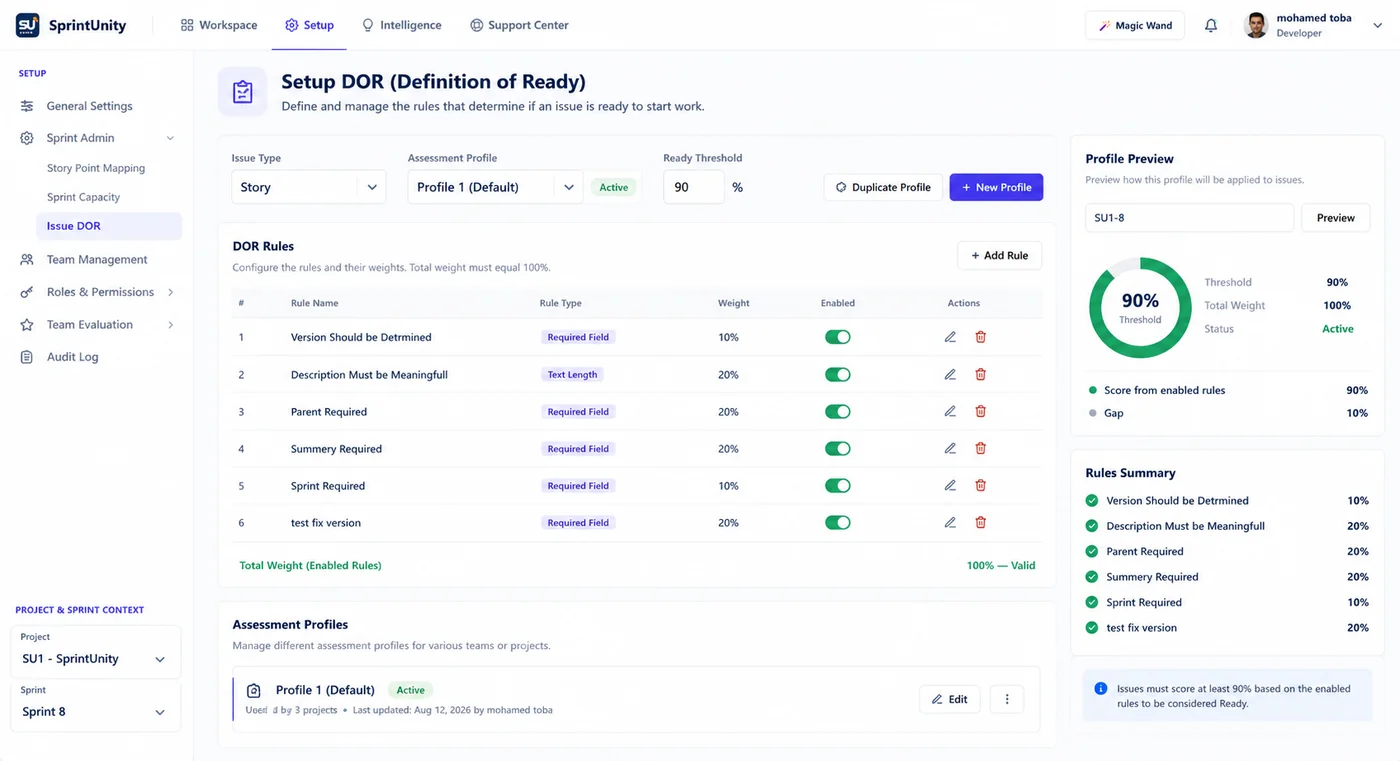
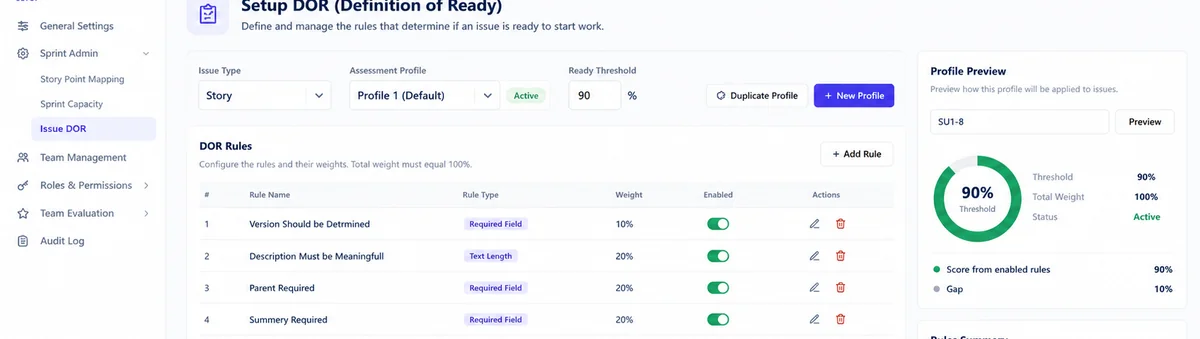
Found under Setup → Sprint Admin → Issue DOR — the third of three tabs on that page, alongside Story Point Mapping and Sprint Capacity. Pick a Project (a UI filter for choosing issue types, not a real data scope — profiles are shared tenant-wide per issue type) and an Issue type, then an Assessment profile.
Assessment rules
A table of every rule in the selected profile — Rule name, Rule type, Weight, Enabled — with edit and delete actions for anyone holding IssueMaturity.ManageRules. A footer shows the total weight of enabled rules and whether it's valid (must equal exactly 100%). + Add rule opens a dialog where the fields shown depend on the rule type: a target Jira field for Required Field / Text Length / Option Selected / Number / Date / Regex rules, a minimum character count for Text Length, a minimum numeric value for Number, a minimum attachment count for Attachment Count, a link-type name for Issue Link, and a JQL condition for JQL Expression.
Ready threshold & profile status
Each profile has its own Ready threshold (%) — editable inline by anyone with IssueMaturity.EditProfile, read-only otherwise — plus an Active/Inactive badge. Only one profile per issue type can be Active at a time; IssueMaturity.ActivateProfile controls switching. IssueMaturity.CreateProfile controls adding a new named profile for an issue type.
Assessment preview
Type any real issue key and click Preview to see exactly how the active (or selected) profile scores it right now — a readiness donut, Status (Ready / Almost ready / Not ready), Threshold, Score, a per-rule pass/warning/fail breakdown with earned-vs-weight points, and a Missing requirements list naming every rule that isn't fully satisfied. This is the same live engine the issue panel and Sprint Advisor use — nothing here is a simulation.
| Permission | What it controls |
|---|---|
IssueMaturity.View | See the Issue DOR setup tab |
IssueMaturity.ManageRules | Add, edit, or delete rules within a profile |
IssueMaturity.EditProfile | Change a profile's Ready threshold |
IssueMaturity.ActivateProfile | Set which profile is active for an issue type |
IssueMaturity.CreateProfile | Create a new named assessment profile |
The 9 rule types, explained
| Rule type | What it checks | Scoring |
|---|---|---|
| Required Field | A chosen field isn't empty (e.g. Description, Assignee) | All-or-nothing |
| Text Length | A text field reaches a minimum character count | Partial credit |
| Option Selected | A picklist field has a value chosen (e.g. Priority) | All-or-nothing |
| Number | A numeric field reaches a minimum value | Partial credit |
| Date | A date field is set | All-or-nothing |
| Attachment Count | The issue has at least a minimum number of attachments | Partial credit |
| Issue Link | A link of a named type exists (e.g. "Design") | All-or-nothing |
| JQL Expression | The issue matches a custom JQL condition | All-or-nothing |
| Regex | A text field matches a pattern | All-or-nothing |
Default profiles that ship out of the box
New tenants start with a working profile per issue type, so DOR is meaningful from day one rather than an empty setup screen:
| Issue type | Threshold | Rules (weight) |
|---|---|---|
| Story | 80% | Description (30), Priority (20), Assignee (20), Labels (15), Components (15) |
| Bug | 85% | Description (35), Priority (25), Assignee (20), Attachments ≥1 (20) |
| Task | 75% | Description (40), Assignee (30), Priority (30) |
| Epic | 70% | Description (50), Priority (25), Labels (25) |
| Sub-task | 70% | Description (50), Assignee (50) |
All defaults are fully editable — they're a starting point, not a fixed policy.
Calculations behind the score
Each rule earns points
All-or-nothing rule types earn either the rule's full weight or zero. Partial-credit types (Text Length, Number, Attachment Count) earn weight × min(1, actualValue ÷ targetValue) — so a description at 48% of the minimum length earns 48% of that rule's weight, not zero.
Overall score
score = round(totalEarned ÷ totalWeight × 100), using only rules that actually applied to this issue.
Status bands
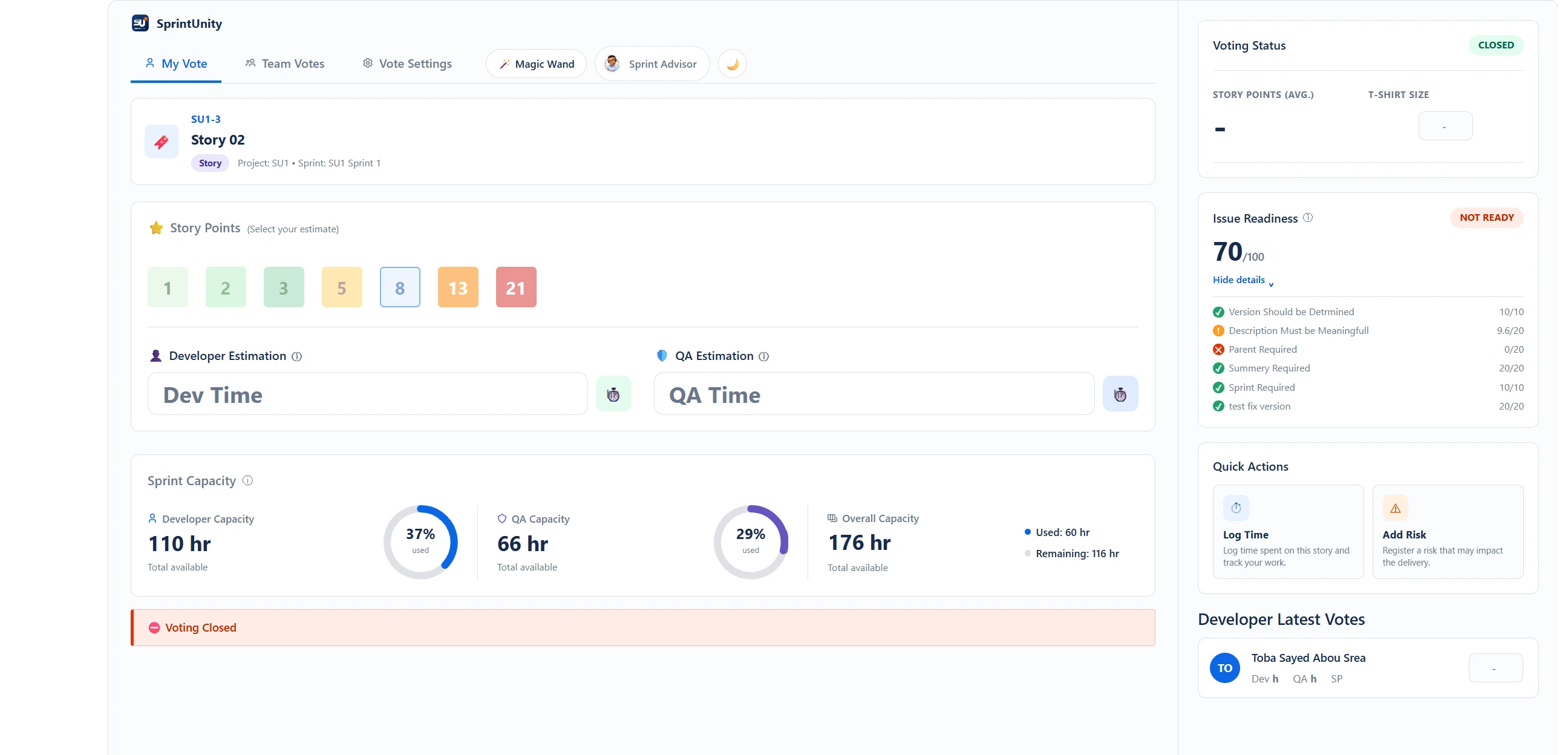
Ready if score ≥ threshold; Almost ready if score ≥ threshold − 15; otherwise Not ready. Example: a 90% threshold with a 70% score is Not ready (70 is below 75) — a 78% score against the same threshold would be Almost ready.
Benefit to you: because every rule's earned points and status (passed / warning / failed) are shown individually, "not ready" is never a mystery — you see exactly which rule cost you points and by how much.
Checking DOR from inside the issue (hello-world)
Open any issue and its Jira panel shows an Issue Readiness card — visible to any developer, analyst, or team member who opens the panel, with no special permission required. It shows the score out of 100 and a status badge (Ready / Almost ready / Not ready), with an info tooltip: "Score is based on this issue's Definition of Ready checklist." Click View details to expand the same per-rule breakdown the setup screen's preview shows — a ✓ / ! / ✕ icon per rule, its name, and earned-vs-weight points — so anyone can see precisely what's missing without leaving the issue.
Calculations behind the charts
The readiness donut on both the setup preview and the issue panel is two arcs: a Score arc colored by status (green for Ready, orange for Almost ready, red for Not ready) sized to the score, and a grey Gap arc filling the rest to 100%. There's no separate chart formula beyond the score itself — the visual is a direct read of the same number shown as text.
Ask Sprint Advisor about this
Ask Sprint Advisor "Is this issue ready for the sprint?" — no permission required — and it answers with the issue's status against its profile, its score and threshold, and a plain list of what's missing, bilingual in English or Arabic. It's explicitly built to format the exact same object the issue panel's Readiness card renders, so Advisor's answer and what's on screen never disagree. See AI Sprint Assistant for how Sprint Advisor and Magic Wand work across the rest of the app.
Rating this page
Anyone reading this documentation can mark whether it answered their question — no permission required. It only helps the SprintUnity team see which pages need more detail.