AI Sprint Assistant (Sprint Advisor)
Sprint Advisor is a contextual help panel docked on nearly every page in SprintUnity, and Magic Wand is its one-click sibling that explains whatever screen you're already looking at. Despite the "AI" name, neither one calls an external AI model — every answer comes from 73 real, named functions reading the exact same already-computed data as the rest of the app, plus a knowledge base of nearly 600 pre-written questions searchable by typed text.
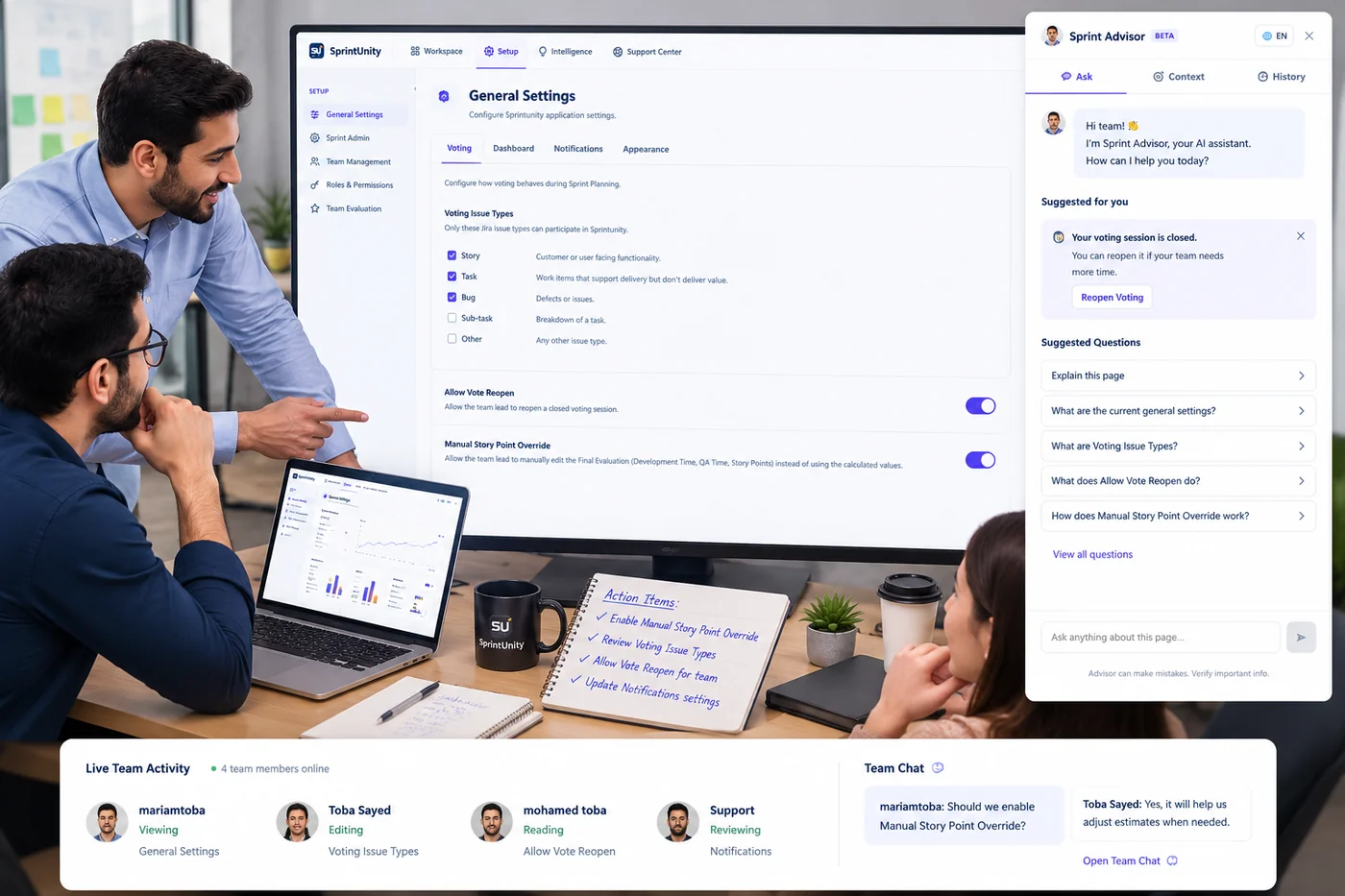
Two ways to ask — and exactly how each one works
1. Pick a suggested question (skill-based)
Each button maps to one specific, named skill function (see the categories below). The skill queries real repositories — sprint intelligence snapshots, risk data, capacity, votes, time logs, permissions, or audit history — and returns a plain-language summary plus optional labeled highlights, in the language you've selected.
2. Type a free-text question (knowledge-base search)
Gated separately by Advisor.Ask. Your text is tokenized, stemmed (so "permission" and "permissions" count as the same word), and expanded through 14 hand-curated synonym groups (for example "capacity," "workload," and "bandwidth" all match each other). Every candidate knowledge-base question is scored by how much of your weighted vocabulary it covers — rarer, more specific words count for more than generic ones like "sprint" or "show," using a TF-IDF-style weighting computed fresh from the knowledge base itself. A typo-tolerant fallback (edit-distance ≤ 1, on words 5+ characters) catches things like "pemrission." A small +0.05 bonus favors questions tagged to the page you're currently on — but the search still checks the entire knowledge base, not just your current page.
The flow behind every answer
The request is scoped, not tenant-wide
Every skill call carries the project, sprint, report, or role you're currently looking at — a skill can't be asked to freely scan your whole tenant's data.
The skill (or KB match) reads real data
Nothing is invented. If Advisor states a Sprint Health Score, it's the identical number the Dashboard already computed and stored — never a separate estimate.
The answer is logged, then rendered bilingually
Every skill and free-text answer is saved to a per-user conversation log (feeding the History tab below) before being shown as a plain-language summary, optional highlight badges, and optional numbered steps — in English or Arabic.
What the 73 skills actually cover
Grouped by the area of the app they read from — every skill below is a real, callable function in advisorSkillsService.js, not a description of planned functionality:
| Category | Examples |
|---|---|
| Sprint Intelligence | Sprint Health summary, top risk, delivery forecast, role performance, capacity breakdown |
| Risk Management | Risk by category, risks without an owner, risk setup overview, top concerns across the sprint |
| Reports (all 9) | One summary skill per fixed report (Executive Summary, Team/Individual Evaluation, Contribution Analysis/Matrix, Sprint Vote, Sprint Planning), plus a shared "Explain this report" for all 9 |
| Team Evaluation | Evaluation weighting per role, who hasn't been scored yet, evaluation setup overview, member breakdown, evaluation history summary |
| Time Logs | Sprint-wide summary, top contributor, breakdown by issue type, per-issue logged-time summary |
| Permissions & Roles | Missing permissions for a role, who can export reports, how to create a role, how to grant a permission |
| Issue panel & Issue Journey | My vote status, vote outliers, final vs. recommended estimate, journey bottleneck, reopen check, explain Stop/Start Voting or Update & Close |
| Quick Actions dialogs | Log Time summary/top contributor, edit-permission rules, linked risk summary (Register Risk dialog) |
| Home & Delivery Command Center | Tenant-wide summary and top action items, both open to everyone with Advisor.View, no extra gate |
| Universal | "Explain this page" — works everywhere, no permission beyond Advisor.View |
Two entry points, one engine
Full panel — dashboard
3 tabs (Ask / Context / History), opened from the header's Advisor button on nearly any dashboard page. This is the version shown above.
Dialog panel — hello-world Quick Actions & Issue Journey
A lighter, single-thread version docked inside the Log Time dialog, the Register Risk dialog, and the Issue Journey view — same underlying askAdvisor call and the same Context capture, just without the History tab, since those are short-lived, single-topic conversations rather than a persistent workspace panel.
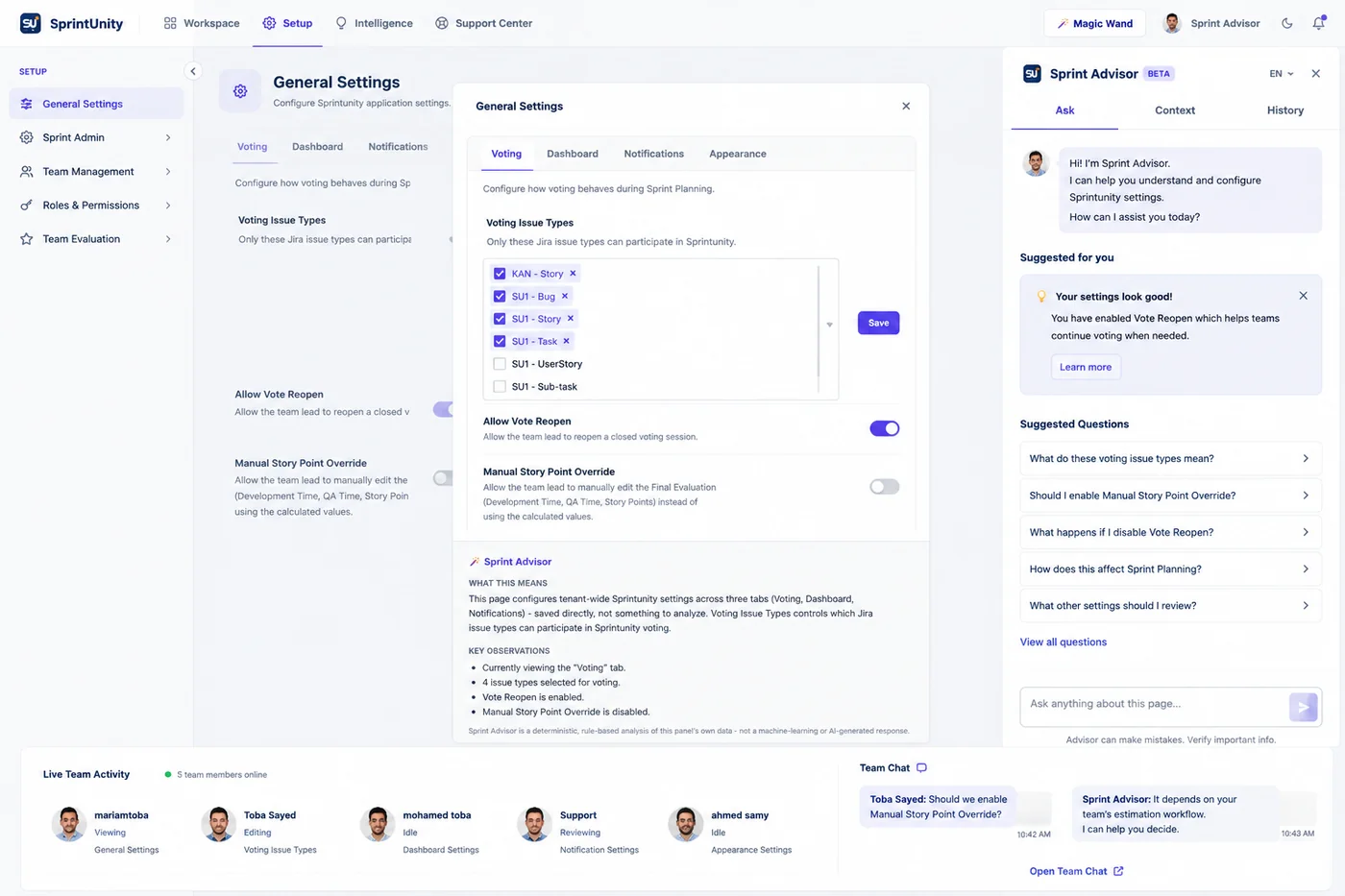
Magic Wand — instant, per-panel explanations
Magic Wand is Advisor's zero-round-trip sibling: arm it, click any panel, and get an explanation built entirely from the data already loaded on your screen — no server call, no waiting. It's real on 46 pages and dialogs (43 dashboard pages/reports, plus the hello-world issue panel, Log Time dialog, and Register Risk dialog), each with its own explainer file.
What it means
A plain-language summary of the specific panel you clicked — not the whole page.
Observations
Specific, concrete things worth noticing in that panel's current numbers.
Risks
Anything the data suggests deserves caution — empty when nothing stands out, never padded to look busy.
Recommendation
A concrete next step, when one applies — otherwise omitted rather than forced.
Context boundary (an explicit internal rule, tagged BRL-ADVISOR-001 throughout the codebase): each panel's explainer only ever receives that one panel's own narrow data slice, never the full page's snapshot — so an explanation of, say, the Risk Summary panel can't accidentally leak or reference numbers from the Capacity panel next to it.
The Context tab — what Advisor knows about "here"
Captured once, the instant the panel opens (not live-tracked while it stays open), and shown read-only:
9 fields, always the same shape
Page, Project, Sprint, your Access Role, User, Tenant, Date & Time captured, any active Filters, and what's currently Selected on screen.
Why it's read-only
To change what Advisor sees, close the panel and change your actual filters or selection on the page — Context is a mirror of real page state, not an editable input of its own.
History & feedback — personal, not an admin dashboard
Every answer you get — skill-based or free-text — is logged to your own conversation history. The History tab re-fetches your last 20 conversations fresh each time you open it; clicking one replays that exact exchange back into the Ask tab without a new server call. Each assistant answer also carries a 👍/👎 feedback control, saved with an optimistic UI update that reverts if the save actually fails server-side.
Worth knowing: this history and feedback are personal to you, not a tenant-wide analytics dashboard. There's no admin screen today that rolls up everyone's Advisor questions or aggregate satisfaction across the team — feedback exists to help improve individual answers, not as a usage-reporting feature.
Real example: the Sprint Issue Vote panel
To make this concrete, here are the actual questions Advisor offers on the Sprint Issue Vote panel — they change depending on which of its 3 tabs you're on:
My Vote tab
"What's my current vote?"
Team Votes tab
"What's the vote status for this issue?" · "Which votes differ most from the team?"
Vote Settings tab
"Should I close voting on this issue?" · "How does the final evaluation compare?" · "Show vote history for this issue" · "Is this issue ready for the sprint?" · "What does Stop/Start Voting do?" · "What does Update & Close do?"
Every one of these is a real, named skill — not a description of what Advisor might do. See the full breakdown on the Sprint Issue Vote page.
Permissions — two tiers, plus a per-skill re-check
| Permission | What it controls |
|---|---|
Advisor.View | Open the Sprint Advisor panel and use suggested/knowledge-base questions |
Advisor.Ask | Ask free-text questions in the input box (the knowledge-base search described above) |
Beyond those two, every individual skill has its own server-side permission requirement, re-checked on every request regardless of what the button's lock icon already showed client-side — the UI lock is a convenience, the backend check is the real gate. Most issue-panel and journey skills need nothing beyond Advisor.View (they only explain what's already on your screen); skills that read a specific feature's data require that feature's own view permission — evalWeighting needs Evaluation.View, capacityBreakdown needs SprintCapacity.View, timeLogDashboardSummary needs Worklog.View, and so on, mirroring the permission table on that feature's own documentation page.
What it deliberately doesn't do
- No LLM or external AI API call, ever — free-text answers come from deterministic keyword/synonym/fuzzy matching against a fixed knowledge base, not generated text.
- No tenant-wide free querying for skill-based questions — every skill call is scoped to the sprint, project, report, or role actually in context.
- No numbers you can't already see elsewhere — Advisor explains and retrieves, it never invents or separately calculates a metric.
- No aggregate usage dashboard — History and feedback are personal to each user, not rolled up anywhere for admins today.
How anyone with access gets value out of this
Rating this page
Anyone reading this documentation can mark whether it answered their question — no permission required. It doesn't change anything in the app; it just helps the SprintUnity team prioritize which pages to improve next.