Role-Based Access Control
Role-Based Access Control is one hub with three tabs — Access Roles, User Roles, and Permission Grants — that together decide who can see and do what across every other page in SprintUnity. Access Roles is where roles get created; Permission Grants is where each role's actual capabilities are turned on or off, module by module; User Roles is where a role gets handed to an actual person, one project at a time.
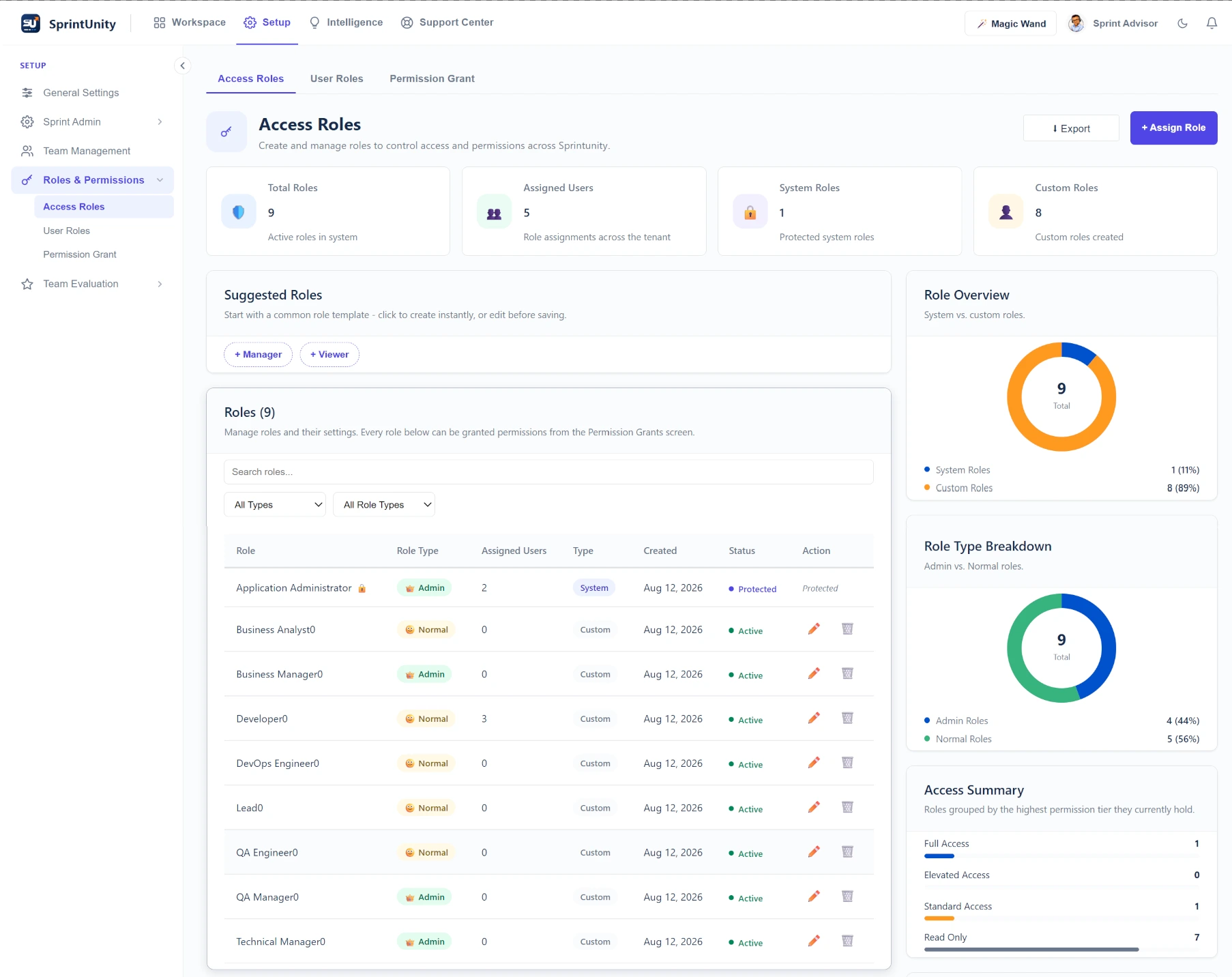
① Access Roles — the role catalog
4 KPI cards up top: Total Roles, Assigned Users, System Roles, Custom Roles. Below them, a row of suggested-role chips and the full roles table.
System vs. Custom roles
System roles (🔒, like APP_ADMIN) ship with the app, are permanently protected, and can't be renamed or deleted — their edit/delete icons don't even render for them. Custom roles are ones your tenant created and can be freely edited or removed.
10 suggested role templates
Manager, Technical Manager, QA Manager, Business Manager, Lead, Developer, Business Analyst, QA Engineer, DevOps Engineer, and Viewer appear as one-click "quick add" chips — but only the ones your tenant hasn't already created. Adding one still requires AccessRoles.Manage; it's a naming shortcut, not a bundle of pre-granted permissions.
Role Type badge — 👑 Admin vs. 🙂 Normal
Every role, system or custom, is tagged Admin-type or Normal-type. Admin-type roles are treated as having full system access wherever the app checks role type (see User Roles' donut below); Normal-type roles are governed purely by whatever's granted on the Permission Grants tab.
permission_type field: containing the word "admin" anywhere counts as elevated; exactly equal to "action" counts as standard; anything else (including a role with zero permissions granted) counts as read only. The role's overall tier is then the highest tier touched by any single permission it holds — one elevated permission is enough to classify the whole role as "Elevated Access," even if every other permission it holds is read-only. Each tier's bar width is simply (roles in that tier ÷ total roles) × 100.Role Overview donut
System roles vs. Custom roles, as a simple count split — not weighted by how many users hold each.
Role Type Breakdown donut
Admin-type roles vs. Normal-type roles, same simple count split.
CSV export
Exports the roles table exactly as shown — name, type, assigned-user count, created date, status.
The exact "Good to Know" guidance shown on this tab, verbatim from the app:
"System roles are protected and cannot be deleted."
"Changes to roles do not affect existing permissions already granted to users."
"Use Permission Grants to assign permissions to roles."
That middle tip is worth pausing on: renaming or deleting a custom role here doesn't retroactively touch what's already been granted to it — role identity and role permissions are managed on two separate tabs, on purpose.
② Permission Grants — what each role can actually do
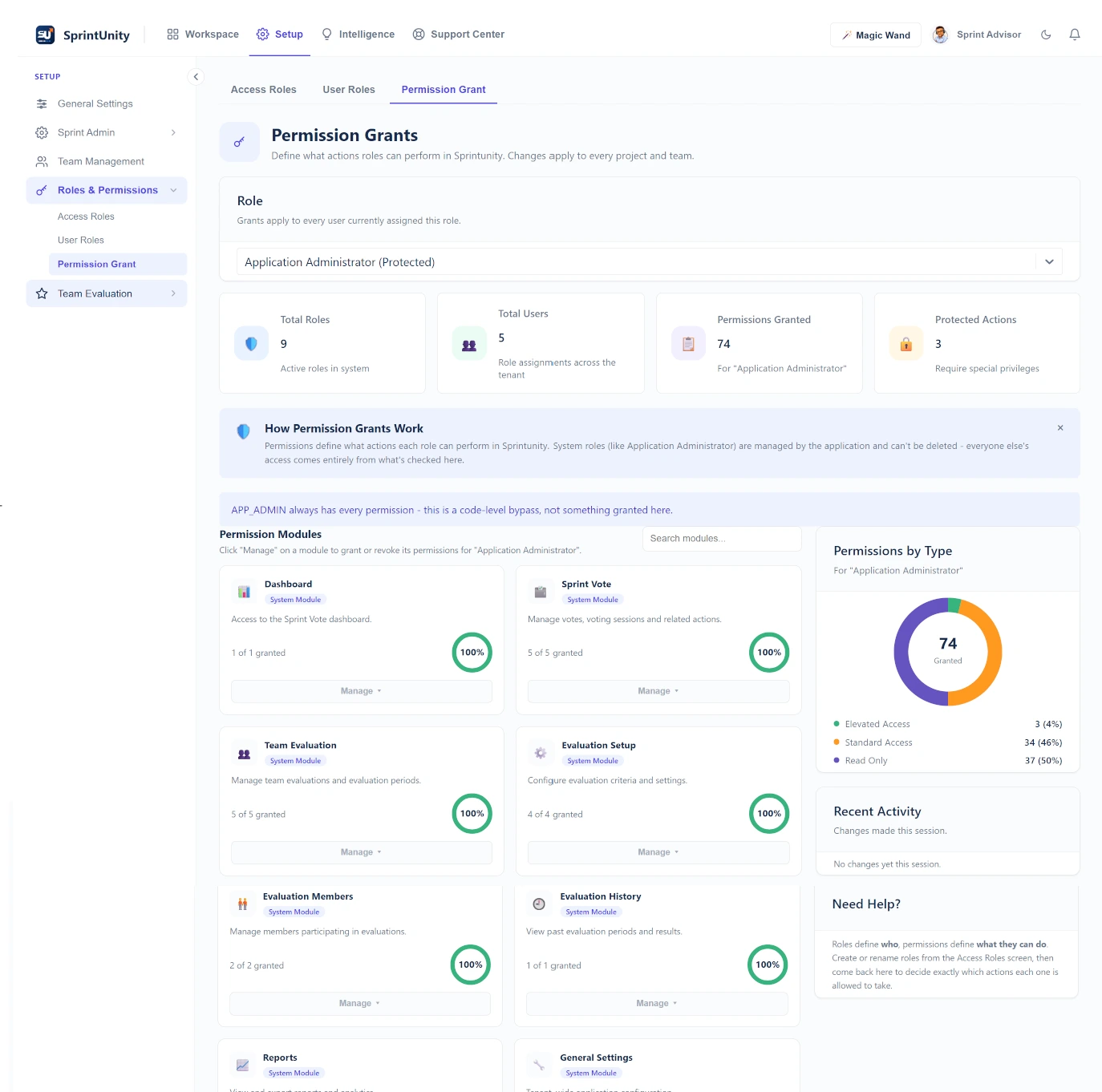
Pick a role from the dropdown (system roles show a "(Protected)" suffix), then work through the Permission Modules grid — one card per module (Dashboard, Sprint Vote, Evaluation, Reports, Settings, Risk Management, Worklog, and more).
4 KPI cards, for the selected role
Total Roles and Total Users are tenant-wide constants. Permissions Granted counts that role's actual stored grants — except for APP_ADMIN, where it's hardcoded to show the full catalog size, since APP_ADMIN's access is a code-level bypass rather than real stored rows. Protected Actions counts every permission classified "elevated" across the entire catalog, tenant-wide — it doesn't change when you switch roles.
The APP_ADMIN special case
Selecting APP_ADMIN shows an explicit note: APP_ADMIN always has every permission as a hardcoded bypass, not something granted on this screen — and its Manage/View button is disabled entirely, with a tooltip explaining why. There's genuinely nothing to configure for it here.
Per-module grant ring
Each module card shows "X of Y granted" plus a colored progress ring: green at 80% or higher, orange from 40% up to 80%, red below 40%. Click Manage to open a checkbox grid for every permission in that module, with Check All / Uncheck All shortcuts (requires PermissionGrants.Manage) — Save persists the role's entire permission set for that module in one call, not one checkbox at a time.
Permissions by Type donut
For the currently selected role: how many of its granted permissions are Elevated, Standard, or Read Only — the same three-way classification used in the Access Roles tier math above.
Recent Activity
Shows grant/revoke changes made during your current session only. It is not yet wired into the app's audit log — reload the page or come back tomorrow and this list is empty again, even though the permission changes themselves are saved. Treat it as a live scratchpad, not a permanent history.
③ User Roles — assigning people to roles, per project
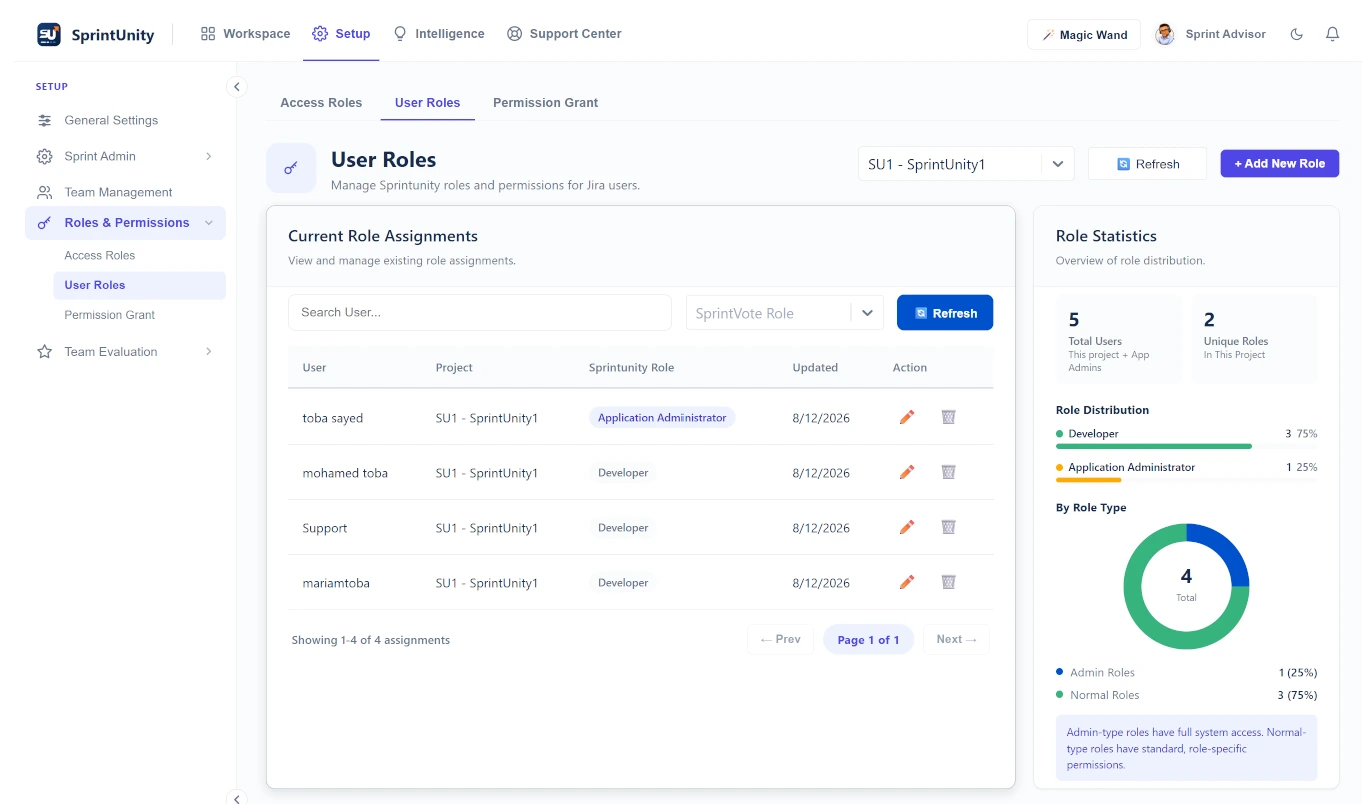
Pick a project (it pre-selects your tenant's default), then assign a Sprintunity role to any team member from that project. The role dropdown is drawn live from your tenant's real role catalog — an older, hardcoded shortlist that no longer matched the actual role catalog was replaced with this live lookup.
One role per person, per project
The "Team Member" picker only offers people who don't already have a role on that project — enforced by filtering, not just a warning message. To change someone's existing role, use the pencil icon on their row in the assignments table instead of trying to add them again.
App Admin is the one project-less exception
App Admin assignments are tenant-wide (no project attached) and are loaded and merged in separately — that's why the Total Users count on this tab can include people who don't appear to have a project-specific row.
Edit and remove are project-scoped permission checks
The pencil (assign/change) and trash (remove) icons are individually gated by UserRoles.AssignRole and UserRoles.RemoveRole — both checked against the specific project you're viewing, not tenant-wide.
role_type from the Access Roles catalog by its role code — it doesn't guess from the role's name, which is specifically why App Admin rows are correctly counted as Admin-type even though "App Admin" isn't a special-cased string anywhere in this calculation.The exact footer note shown under that donut: "Admin-type roles have full system access. Normal-type roles have standard, role-specific permissions."
Permissions — the 7 that gate this hub
| Permission | What it controls |
|---|---|
AccessRoles.View | See the Access Roles tab at all (also gates whether the tab itself is shown) |
AccessRoles.Manage | Create, rename, delete roles, and add suggested-role chips |
UserRoles.View | See the User Roles tab |
UserRoles.AssignRole | Assign or change a person's role, scoped to the project being viewed |
UserRoles.RemoveRole | Remove a person's role assignment, scoped to the project being viewed |
PermissionGrants.View | See the Permission Grants tab |
PermissionGrants.Manage | Open a module's Manage dialog and save grant/revoke changes |
The View/Manage split on each tab is deliberate, per the code's own comment on PermissionGrants.*: someone can be given visibility into what a role can do without also being trusted to change it. All three tabs are independently gated — a user could, for example, see Access Roles without being able to see Permission Grants at all.
Magic Wand — one panel per tab
Unlike data dashboards with a panel per chart, all three RBAC tabs are CRUD-style management screens — so each gets a single, page-level Magic Wand panel rather than one per row or card. Exact explanation text, verbatim from each tab's explainer function:
Access Roles panel
"This page manages the tenant's access role catalog — system roles (protected, can't be deleted) and custom roles you create. A role's actual permissions are granted separately on the Permission Grants page; deleting or renaming a role here doesn't change permissions already granted to users elsewhere." Observations report the total/system/custom role counts and the total assignment count broken down by Admin-type vs. Normal-type roles.
Permission Grants panel
"This page grants and revokes individual permissions to '{role}', grouped into modules... Changes here apply immediately to every user currently holding this role, across every project and team." (Swaps to the APP_ADMIN-specific explanation, shown above, when that role is selected.) Observations report permissions granted to the selected role plus the tenant-wide protected-action count.
User Roles panel
"This page assigns and removes Sprintunity access roles (from the Access Roles catalog) for individual users within the selected project. Role Statistics below summarizes the current distribution — it recalculates live as assignments change, it isn't a separate saved report." Flags a risk note if the selected project has zero role assignments yet.
Ask Sprint Advisor about this hub
9 real skills across the three tabs — each one a named, callable function, not a placeholder. The "Explain this page" skill works on all three, gated only by that tab's own View permission:
| Skill | What it actually does | Permission |
|---|---|---|
| Explain this page ×3 | Returns the exact per-tab text quoted above, one per tab | Each tab's own *.View |
roleOverview | Lists every role in the tenant with its real, live assignment count (queried fresh, not cached), tagging system roles "(system)" | AccessRoles.View |
roleDistribution | Tenant-wide count of active role assignments grouped by role, across every project — not limited to the project currently selected on screen | UserRoles.View |
showMissingPermissions | Defaults to your own current role (not an arbitrary one you pick) and lists every catalog permission it doesn't have, capped at 8 with a "+N more" summary — or says outright "This role already has every permission in the catalog" when nothing's missing | None beyond Advisor.View |
whoCanExportReports | Finds every role holding any permission starting with Reports. and names them — e.g. "Manager, QA Manager can export reports" — or honestly says no role currently can | PermissionGrants.View |
showAdminPermissions | Lists every permission actually granted to the ADMIN role, capped at 10 with a "+N more" tail | PermissionGrants.View |
howToCreateRole | Static 3-step answer: go to Access Roles, click "New Role" and name it, grant it permissions from Permission Grants | AccessRoles.Manage |
howToGrantPermission | Static 4-step answer: open Permission Grants, pick the role, click Manage on the right module, check the permission and Save | PermissionGrants.View |
Interesting design choice on showMissingPermissions: it never lets you ask "what's missing from Role X" for an arbitrary role — it only ever answers about the role you currently hold. That keeps the answer meaningful (it's telling you what you personally can't do yet) without turning into a way to probe other roles' gaps from the chat box.
How anyone with access gets value out of this
What's deliberately left out, and why
- Recent Activity on Permission Grants is session-local only — it is not yet backed by the audit log, so it resets on reload. Treat it as a live scratchpad, not a permanent record of who changed what.
- Permission Grants has no per-user override — every grant is at the role level. Giving one specific person extra access means either creating a new role for them or changing the role everyone in their position shares.
- APP_ADMIN's permissions can't be edited from this screen at all — its access is a hardcoded, code-level bypass, not a set of stored grants, so there's genuinely nothing to toggle.
- Newer permission modules (Risk Management, Worklog, Sprint Intelligence, and others) show a generic icon and an auto-generated description rather than curated copy — a real, current gap rather than something hidden from you.
Rating this page
Anyone reading this documentation can mark whether it answered their question — no permission required. It doesn't change anything in the app; it just helps the SprintUnity team prioritize which pages to improve next.