Time Tracking
Time Logging answers one question honestly: how much time did people actually spend, on what, and how does that compare to what was estimated? Every team member logs their own time directly on the Jira issue they're working — in seconds, from a Quick Actions button — and that same data rolls up into a sprint-wide dashboard with totals, trends, and an Estimated vs Logged comparison. Nothing here is a Jira worklog: it's a local SprintUnity record, built specifically to feed Sprint Capacity and give an honest read on estimation accuracy.
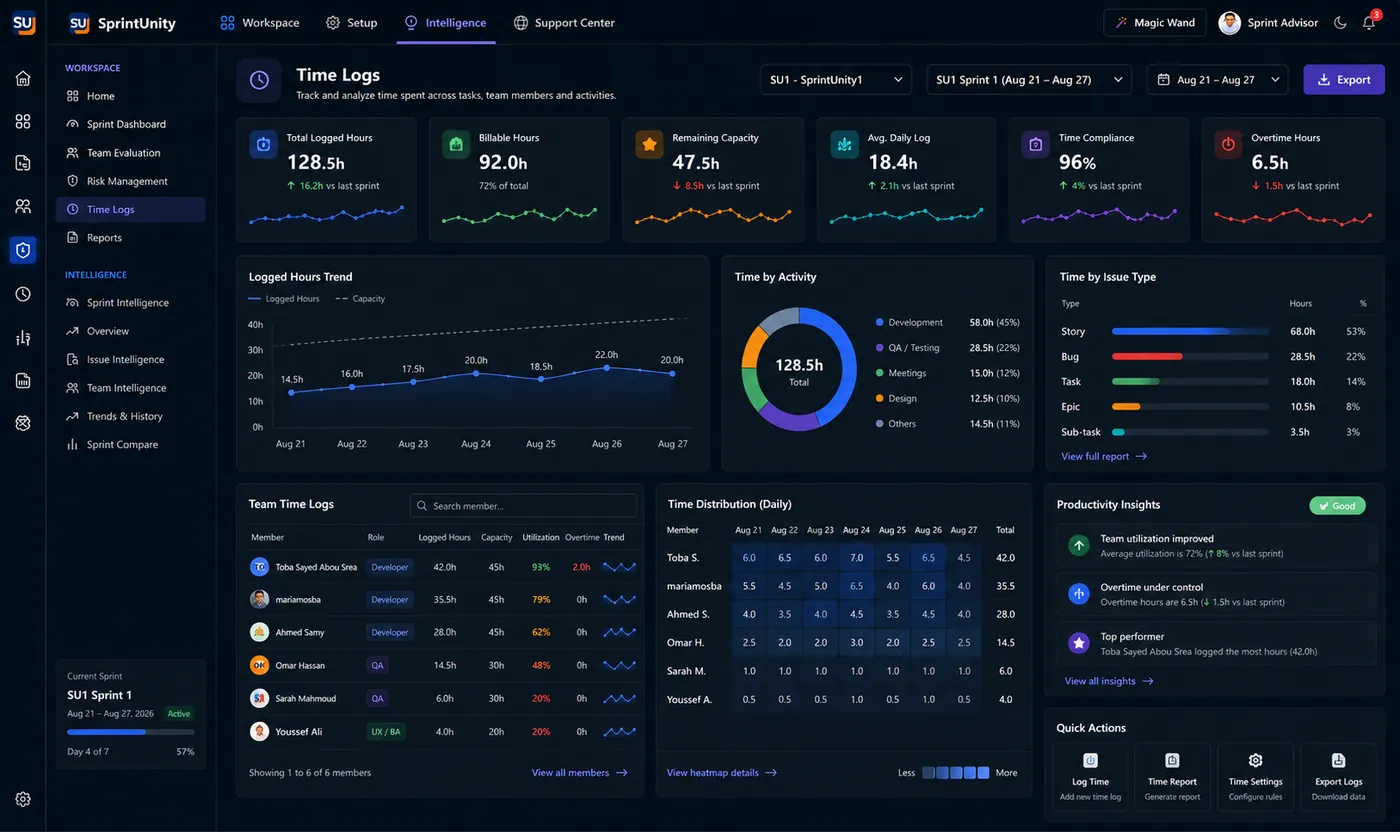
Where time gets logged — the Jira issue panel
Every team member logs their own time from inside the issue they're working on, not from a separate tool. Open the issue in Jira, find the SprintVote panel, and use Quick Actions:
1. Click "Log Time" in Quick Actions
Visible to anyone holding Worklog.Create. Opens the Log Time dialog, scoped to that one issue.
2. Pick a duration
Five quick chips — 15m, 30m, 1h, 2h, 4h — or switch to Custom and type a duration like "3h 30m", "1.5h", or a bare number (treated as minutes). The default selection is 2h until you change it.
3. Set the work date and an optional description
Work date defaults to today and can't be set in the future. Description is a free-text note on what the time was actually spent on — useful context when reviewing the log later.
4. Save — and it's yours to manage
The entry is stored under your account and shows up immediately in that same dialog's Logged Time tab. You can edit or delete your own entries at any time; editing or deleting someone else's entry needs Worklog.ManageAny.
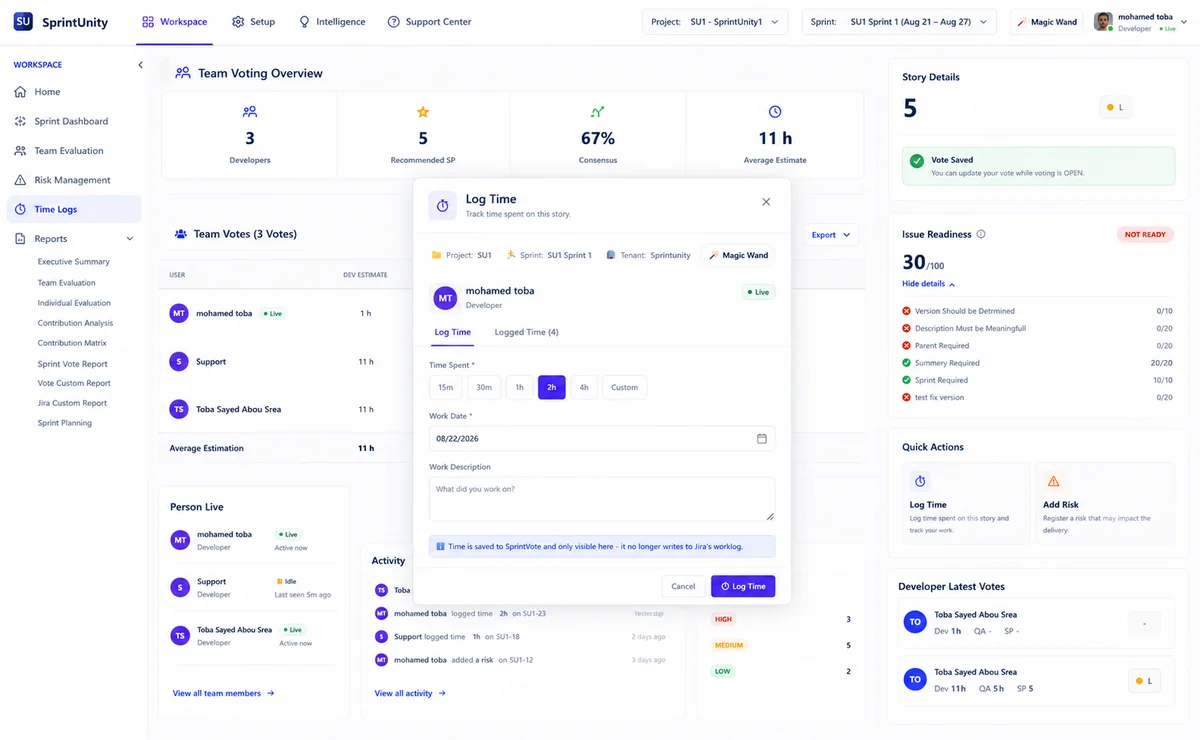
The Logged Time tab — everyone's history on this one issue
The dialog's second tab, labelled Logged Time (n), lists every entry logged on that specific issue — author, date, duration, and description, newest first. Each row's edit (✎) and delete (🗑) icons only appear when you're allowed to touch that entry: your own, always; anyone else's, only with Worklog.ManageAny. This is the same rule the server enforces on every request — the UI just hides controls that would otherwise fail with a permission error.
The Time Logs dashboard — the sprint-wide view
Found under the dashboard's main navigation, gated by Worklog.View. Pick a project and a sprint to see everything logged against it, built from the exact same entries the issue panel writes — there's no separate aggregation pipeline to drift out of sync.
Four KPI cards
| Card | What it shows |
|---|---|
| Total Time Logged | Sum of every entry's duration in this sprint |
| Avg. Time per Day | Total logged ÷ number of distinct days that had any activity (not the sprint's full length) |
| Active Members | Count of distinct people who logged at least one entry |
| Issues Logged | Count of distinct issues with at least one entry |
Each card shows a "vs last sprint" delta — the previous sprint is found by sorting this project's sprints by start date and taking the one immediately before the selected sprint. If there's no earlier sprint, or that sprint has no logged data, the delta honestly reads "no data" instead of showing a fabricated 0% or a misleading blank.
Time Logged Over Time & Time by Issue Type
Time Logged Over Time
A line chart spanning only the days that actually had logged activity — from the earliest to the latest logged date, with zero-filled gaps in between so the line doesn't jump. It deliberately does not span the sprint's full Jira date range, since backend-api has no way to know that range independent of what was actually logged.
Time by Issue Type
A donut chart of total logged seconds grouped by the Jira issue type each entry was logged against (Story, Bug, Task, Spike, Epic, Subtask). Entries logged before issue type was captured — or against a type outside this set — are bucketed as "Unspecified" rather than dropped.
By Issue & By Contributor tables
Two ranked tables, both sorted by total logged time, descending: By Issue (issue key, type, entry count, logged time, and — where available — the estimated time for that issue) and By Contributor (name, entry count, total logged time).
Estimated vs Logged — actual vs expected time
This is the comparison the whole feature exists to support: what the team actually spent, against what they said it would take when the story point vote closed.
Where "Estimated" comes from
Each issue's estimate is dev_hours + qa_hours from that issue's closed vote session — the same final dev/QA hour split Sprint Advisor's estimate-comparison skills already treat as the trustworthy "final" number, not a raw average of individual votes.
Where "Logged" comes from
The sum of every time entry logged against that same issue in this sprint — exactly what feeds the KPI cards above.
Which issues count
Only issues that have both a closed vote estimate and at least one logged entry. An issue logged against but never voted-and-closed is excluded entirely from this comparison — not silently treated as a zero estimate.
Time Log Details — every entry, searchable and manageable
The table beneath the charts is the raw data everything above is built from: date, member, issue key, issue type, and time logged for every entry in the sprint.
Search, filter, and sort
Free-text search matches issue key, member name, or description. Dropdown filters narrow by member or issue type. Every column header is clickable to sort, ascending or descending. All of this runs client-side against the sprint's already-loaded entries — sprint-sized data, no server round-trip needed per keystroke.
Paginated, 10 rows at a time
With numbered page controls and a "Showing X to Y of Z entries" summary that always reflects your current search and filters.
Edit or delete, per-row permission
The ✎ and 🗑 icons only appear on rows you're allowed to touch — your own entries, or any entry if you hold Worklog.ManageAny — identical to the rule enforced in the issue panel's Logged Time tab.
Export
A CSV export button downloads exactly what's currently filtered — date, member, issue key, issue type, hours, and description — named after the selected sprint.
What's deliberately left out, and why
No historical backfill
Only entries logged since this Log Time feature shipped exist in the data — there's no retroactive import of time spent before that. A sprint that closed before the rework can show zero logged time even if real work happened.
No "Billable Time" field
Removed from an earlier design — no team-wide definition of "billable" was ever settled on, so it isn't tracked rather than tracked inconsistently.
No issue summary/title column
The stored entry only has the issue key and type, not its title — backend-api has no live Jira access to fetch that text, so the tables intentionally show the key alone rather than a stale or guessed title.
| Permission | What it controls |
|---|---|
Worklog.Create | Log time against an issue from the Quick Actions panel |
Worklog.View | View logged time entries on an issue, and open the Time Logs dashboard |
Worklog.ManageAny | Edit or delete any user's logged time entries, not just your own |
Deliberately no separate Worklog.Edit / Worklog.Delete permissions: anyone who can log time can already manage their own entries by default, so the only elevated permission needed is the one that reaches beyond your own entries — Worklog.ManageAny, typically granted to Team Leads or Admins for correcting mistaken entries.
Magic Wand — a deterministic explainer on every panel
Same rule-based, no-LLM approach used across the rest of the app — click the Magic Wand, then click any panel to get a structured explanation of just that panel's own numbers.
Time Logs dashboard — 7 panels
KPI Summary, Time Logged Over Time, Time by Issue Type, By Issue, By Contributor, Estimated vs Logged, and Time Log Details each explain themselves independently — none of them ever see the full page's data, only their own panel's slice.
Log Time dialog — 2 panels
The Log Time form and the Logged Time history tab each have their own light-touch explainer, matching the same per-tab pattern used elsewhere in the issue panel.
Ask Sprint Advisor about this
Beyond the universal "Explain this page," Time Logging has 5 real chat skills — all deterministic, reading from the exact same aggregation the screens render, never an LLM call:
"Summarize logged time on this issue"
Available from the issue panel. Total logged, entry count, contributor count, and the most recent entry — for the one issue you're currently viewing.
"Who's logged the most time?"
Issue-scoped. Ranks every contributor on this issue by total logged time.
"Summarize time logged this sprint"
Dashboard-level, gated by Worklog.View. Total logged, entry count, issue and contributor counts, average per day, and the Estimated vs Logged comparison if any issues qualify — reads from the identical timeLogService.getSprintSummary call the KPI cards use.
"Who's logged the most time this sprint?"
Dashboard-level, gated by Worklog.View. The same By Contributor ranking as the dashboard table, narrated.
"Which issue type has the most logged time?"
Dashboard-level, gated by Worklog.View. The same Time by Issue Type donut, narrated with the full breakdown.
There's also a standing knowledge-base answer for "Can I edit someone else's logged time entry?" — only with Worklog.ManageAny; otherwise you can only edit or delete your own. See AI Sprint Assistant for how Sprint Advisor and Magic Wand work together across the rest of the app.
Getting the team into the habit
The dashboard is only as useful as the discipline behind it — a few practical points worth setting expectations on:
Log as you go, not at sprint end
The quick-pick chips exist so logging takes seconds — the whole point is to capture time while the work is fresh, rather than reconstructing a week of hours from memory on the last day.
Close the vote before expecting an Estimated vs Logged number
An issue with logged time but no closed vote never appears in the comparison — if that number looks empty, check whether the story point vote was actually closed.
Use the description field
It's optional, but it's the only context anyone reviewing Time Log Details later has beyond a bare duration — a short note pays off during retros and 1:1s.
Grant Worklog.ManageAny narrowly
It's the one permission that can touch other people's records — reserve it for Team Leads or Admins who actually need to correct mistaken entries.
Who benefits, and how
Worklog.View sees the same totals, the same trend, and the same Estimated vs Logged number — calculated the same way every time. The satisfaction widget below is open to every reader of this documentation, no permission required.Rating this page
Anyone reading this documentation can mark whether it answered their question — no permission required. It only helps the SprintUnity team see which pages need more detail.