Sprint Capacity Planning
Know what your team can realistically deliver. Understand development and QA capacity before committing work to the sprint — set maximum development and QA hours, watch utilization update as work is planned, and see exactly how much room is left before the sprint is overloaded.
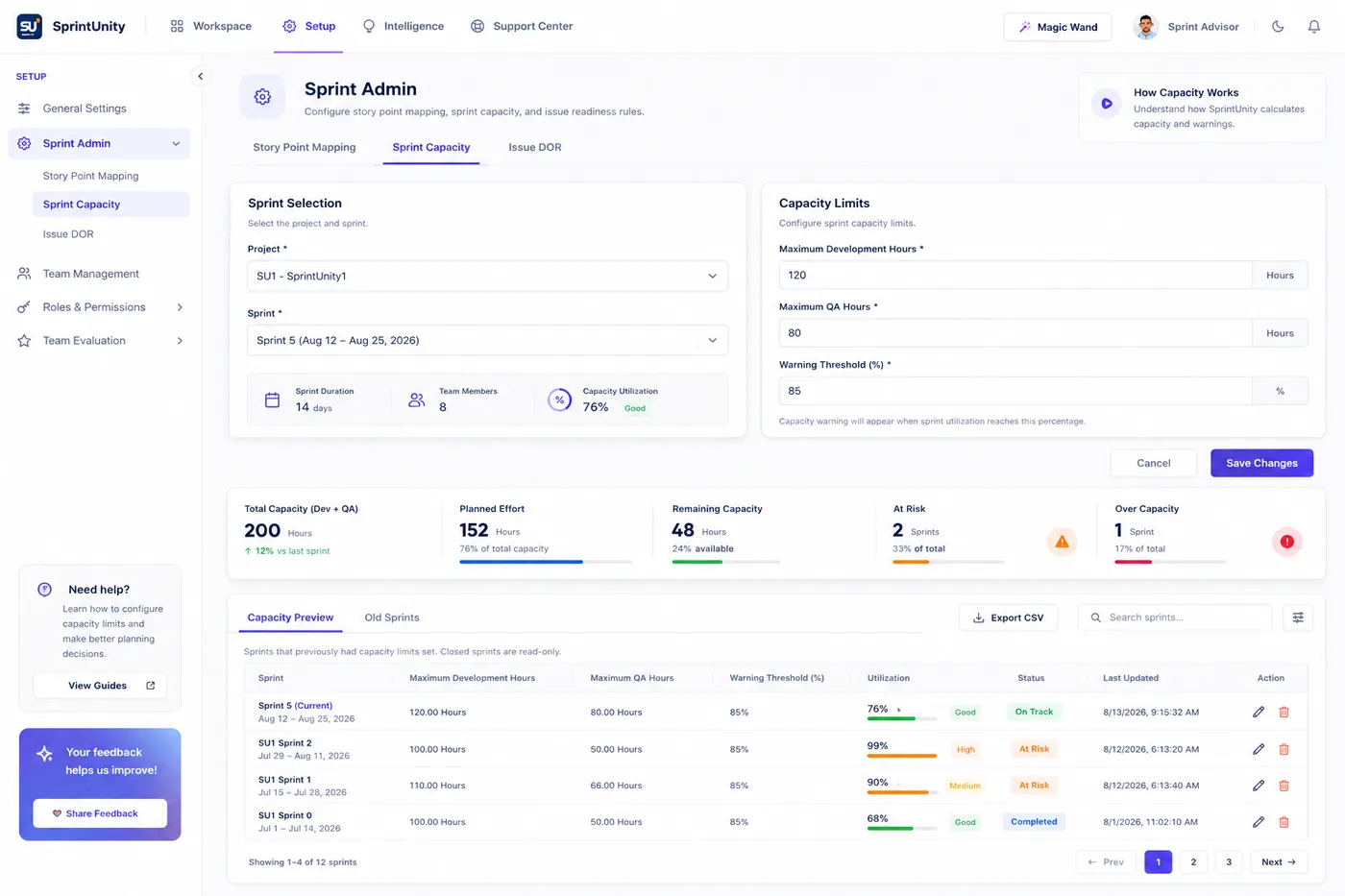
What it means, and why Dev and QA are separate
A sprint's total working hours aren't one bucket — development and QA can be under completely different pressure at the same time. A sprint can be QA-constrained (plenty of dev room, but not enough QA hours to test everything committed) or the reverse, and a single combined number would hide that. So Sprint Capacity tracks Maximum Development Hours and Maximum QA Hours as two independent limits for the same sprint, plus a Warning Threshold (%) that marks how close to full is "worth flagging" before the sprint is actually over budget.
The data model still has a legacy Maximum Story Points field from an earlier version, kept so saving a sprint never silently erases an old value — but it's no longer shown on the setup form. Hours, not story points, are the single source of truth for capacity today.
Where Sprint Capacity is used across the app
This is deliberately not a standalone number — the same max_dev_hours / max_qa_hours you set here is read by four other places, so capacity never means something slightly different depending on which screen you're looking at:
Sprint Health's Capacity pillar
Worth 20% of the overall Sprint Health Score. Reuses these exact limits — see the calculation below.
Risk Management's Capacity Risk & Capacity Underburn Risk
Two of the 17 automated detection rules read the same numbers from two opposite angles — one flags overload, the other flags a sprint running suspiciously under its planned pace.
Sprint Advisor's capacity skill
Ask Sprint Advisor about capacity and it reads this same row and answers in plain language — including your configured Warning Threshold, which isn't shown as a color anywhere in the UI today but is spoken by Advisor. See below.
The Sprint Issue Vote panel in Jira
Every issue's Jira panel shows a live Sprint Capacity check against these same limits, so a team can see mid-voting whether they're about to commit more than the sprint can hold. Covered in detail below.
The setup screen, in depth
Found under Dashboard → Sprint Capacity. Pick a project and sprint, then:
Capacity Limits
Three required fields: Maximum Development Hours, Maximum QA Hours, and Warning Threshold (%). Both hour fields must be greater than zero; the threshold must be between 1 and 100. A hint under the threshold field spells out what it's for: "Capacity warning will appear when sprint utilization reaches this percentage." Anyone with the SprintCapacity.Edit permission can Save or Cancel; closed sprints are locked and can't be edited at all.
Capacity Preview / Old Sprints
A two-tab card below the form. Capacity Preview shows the current sprint's Dev and QA hours usage as two progress bars (used / max, with remaining hours called out separately) plus Team Members count, with a footer note that capacity "is calculated based on current sprint data and will update as work progresses." Old Sprints is the full history of every sprint that's ever had capacity limits saved for this tenant — a paginated table (10 per page) you can inline-edit (SprintCapacity.Edit) or delete (SprintCapacity.Delete); a sprint that's since closed in Jira shows a 🔒 Closed badge instead of edit/delete controls, since closed sprints are read-only everywhere in SprintUnity.
| Permission | What it controls |
|---|---|
SprintCapacity.View | See the setup screen and ask Sprint Advisor about capacity |
SprintCapacity.Edit | Change limits for the selected sprint, or edit a past sprint's saved row |
SprintCapacity.Delete | Remove a sprint's capacity record from history |
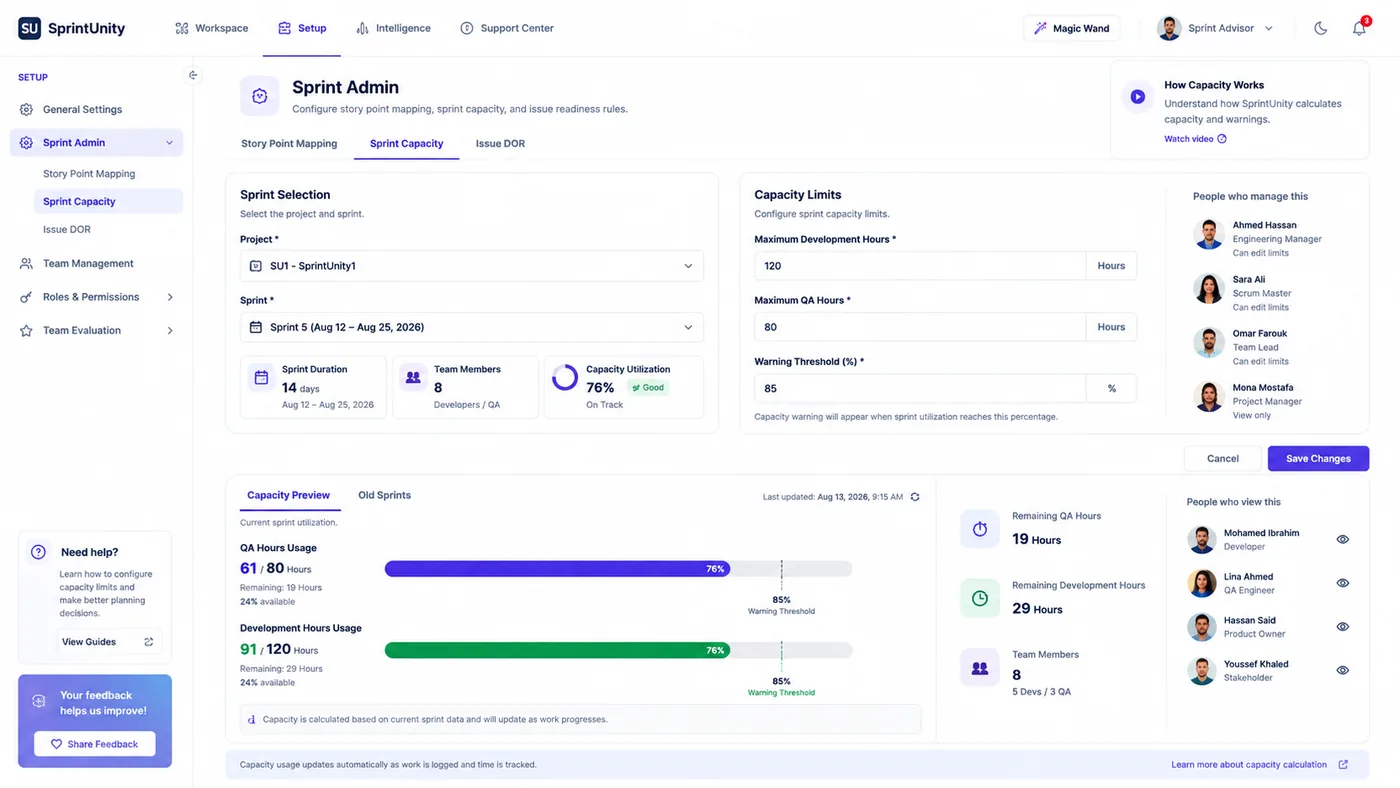
The capacity check inside the issue panel — does this vote exceed capacity?
Open any issue in an active sprint and its Jira panel shows a Sprint Capacity section right below the voting controls — three cards: Developer Capacity and QA Capacity, each a ring showing percent used, and an Overall Capacity card with a small Used/Remaining legend. An info tooltip spells out exactly what "used" means here: "Used is the sum of each issue's FINAL vote (locked in when a vote is closed) across this sprint — planning estimates, not real execution time." In other words, this reflects what the team has committed to during Sprint Issue Vote, not hours actually logged yet.
Each ring turns red the moment its side goes over budget (usedDevHours > maxDevHours, or the same for QA) — a plain over/not-over signal, not a separate amber "approaching capacity" state. If a project hasn't set capacity for the active sprint yet, the panel says so plainly and points to Dashboard → Sprint Capacity instead of showing a misleading empty ring.
Calculations behind the numbers and charts
Percent used & remaining
hoursPercent = round(usedDevHours ÷ maxDevHours × 100), same formula for QA. remainingDevHours = maxDevHours − usedDevHours (and QA the same way) — can go negative once a sprint is over budget.
Sprint Health's Capacity pillar score
Takes the worse of the two utilization percentages — pct = max(devPct, qaPct) — then converts it to a 0–100 score: score = clamp(100 − max(0, pct − 70) × 2, 0, 100). Utilization at or under 70% scores a full 100 (no penalty at all); every point above 70% costs 2 score points — so 85% used scores 70, and 100% used scores 40. A sprint with no capacity configured at all scores a neutral 100 rather than being penalized for missing setup.
Capacity Risk severity (Risk Management)
The same worst-of-Dev/QA percentage, checked against fixed bands: 70% = Medium, 85% = High, 100%+ = Critical. See Sprint Risk Management for the full rule catalog.
Benefit to you: every one of these consumers reads the exact same stored max_dev_hours / max_qa_hours / used… pair — there's no second, slightly different "capacity" number hiding on another page.
Ask Sprint Advisor about this
Sprint Advisor's capacity skill (gated by SprintCapacity.View) reads this same sprint's configured limits and real usage, then answers in a plain sentence — bilingual, English or Arabic. If nothing is configured yet, it tells you the sprint's current story points and hours and suggests setting a limit. Once capacity is set, it reports usage directly and adds a flag: "This sprint is over its configured capacity" once either Dev or QA usage passes 100%, or "This is approaching the {your %} warning threshold" once usage crosses the Warning Threshold you configured — the one place in the app today where that threshold is actually spoken back to you, rather than only stored. See AI Sprint Assistant for how Sprint Advisor and Magic Wand work across the rest of the app.
Rating this page
Anyone reading this documentation can mark whether it answered their question — no permission required. It only helps the SprintUnity team see which pages need more detail.